After creating a validation rule, you need to associate the validation rule with a reference table.
This allows you to execute the validation rule to validate data in the reference table.
To associate validation rules with reference tables, follow these steps:
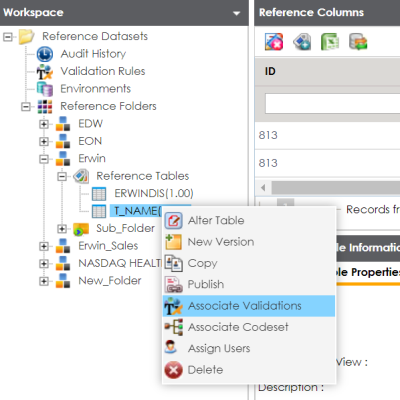
- In the Workspace pane, right-click a reference table.
- Click Associate Validations.
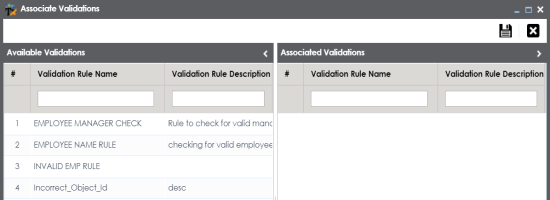
- Drag and drop the required validation rule from the Available Validation pane to the Associated Validation pane.
- Click
 .
.
The available options appear.
The Associate Validation page appears.
For more information on adding validation rules, refer to the Adding Validation Rules topic.
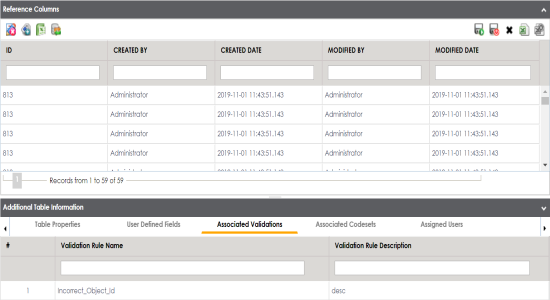
The associated validation rules appear on the Associated Validations tab.